Heroku Postgres, without the terminal
Heroku Postgres GUI
Connect to your Heroku PostgreSQL databases, browse tables, inspect records, and run SQL through a focused desktop interface.
Pay once, use it forever — no subscription
7-day free trial · SSL connections · Credentials stay on your machine
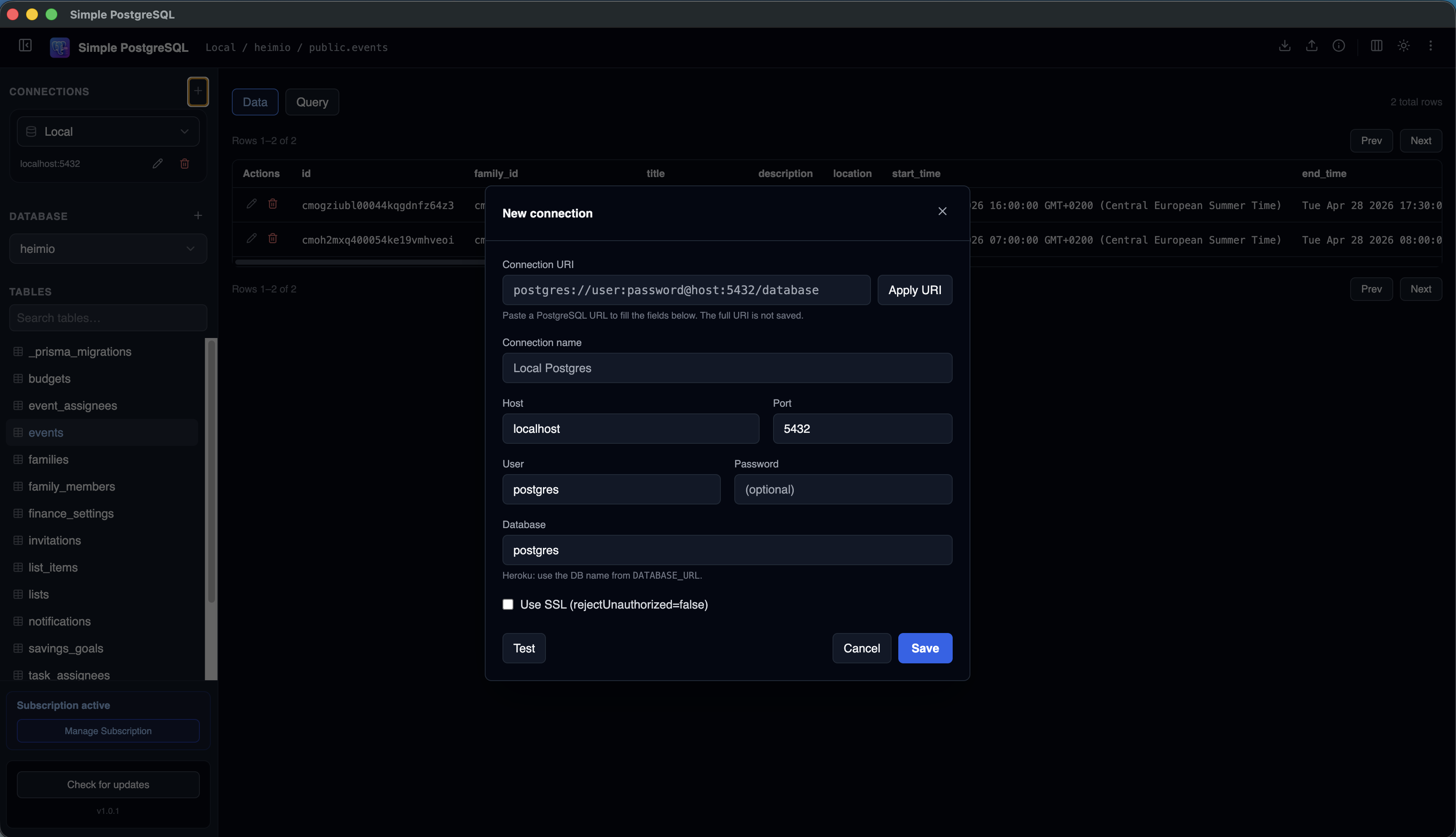
Heroku makes deploying applications remarkably simple. Managing the database can be a different story.
Developers often end up copying PostgreSQL connection strings, opening terminal windows, and running SQL commands just to inspect a table or verify a record. A Heroku Postgres GUI makes those everyday tasks significantly easier.
Simple PostgreSQL connects directly to your Heroku Postgres database so you can browse tables, run queries, and manage data visually from your Mac.
The same workflow also applies to other hosted PostgreSQL providers. See the Supabase GUI guide, Neon Postgres GUI guide, or the broader remote PostgreSQL connection guide.
Why Developers Look for a Heroku Postgres GUI
The command line remains useful. Heroku developers commonly reach for heroku pg:psql or connect
with psql. A graphical client complements that workflow when you need to explore and compare data quickly.
The Problem With Managing Heroku Databases
As applications grow, developers repeatedly need answers to practical questions:
Did the migration run?
Check that expected tables and columns are present after deployment.
Does this record exist?
Search and inspect application data without building a one-off admin screen.
Why is this query failing?
Run focused SQL and examine the database structure in one place.
Without a GUI, this can mean switching repeatedly between the Heroku Dashboard, terminal windows, documentation, and SQL output. A dedicated client keeps the database work together.
Connect to Heroku Postgres in Minutes
Heroku allows external clients to connect using the database URI. Heroku Postgres requires SSL for external connections, so make sure SSL is enabled when adding the connection.
- 1
Open your Heroku Postgres database
Choose the database from your app's Resources list or the Datastores area in Heroku.
- 2
Copy the database URI
Open the Credentials tab, select the credential, and copy the connection string from the URI section.
- 3
Add a connection
Open Simple PostgreSQL and paste the URI, such as
postgres://user:password@host:5432/database. - 4
Enable SSL and test
Keep SSL enabled, test the connection, then save it for future use.
- 5
Browse your database
Open the connection and explore schemas, tables, rows, and queries visually.
Explore Heroku Postgres Tables Visually
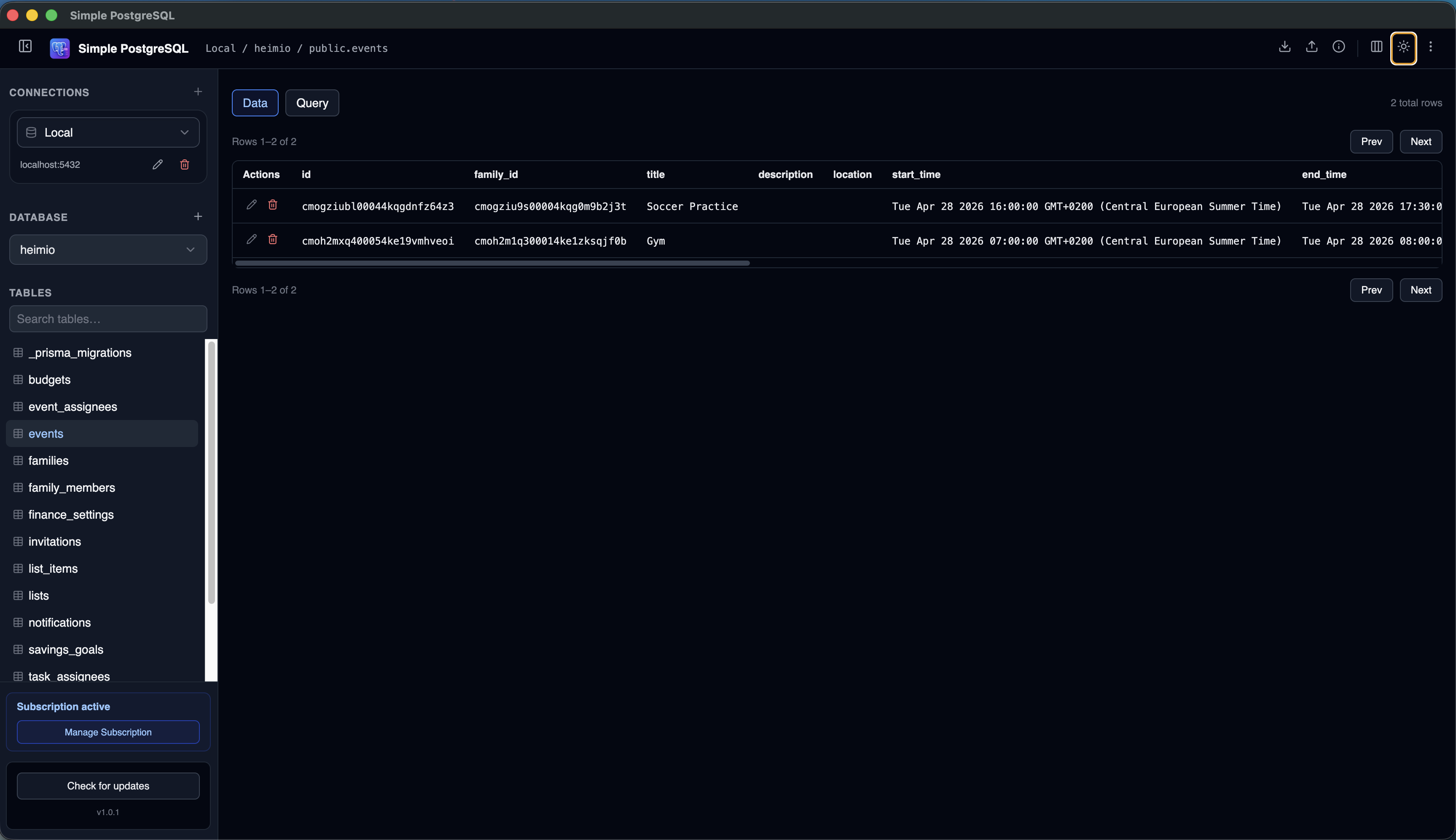
Instead of writing SQL just to understand a database, use the connection tree to view schemas, browse tables, inspect columns, and preview data. This is especially useful when joining a project or debugging a production issue.
Run SQL Queries Faster
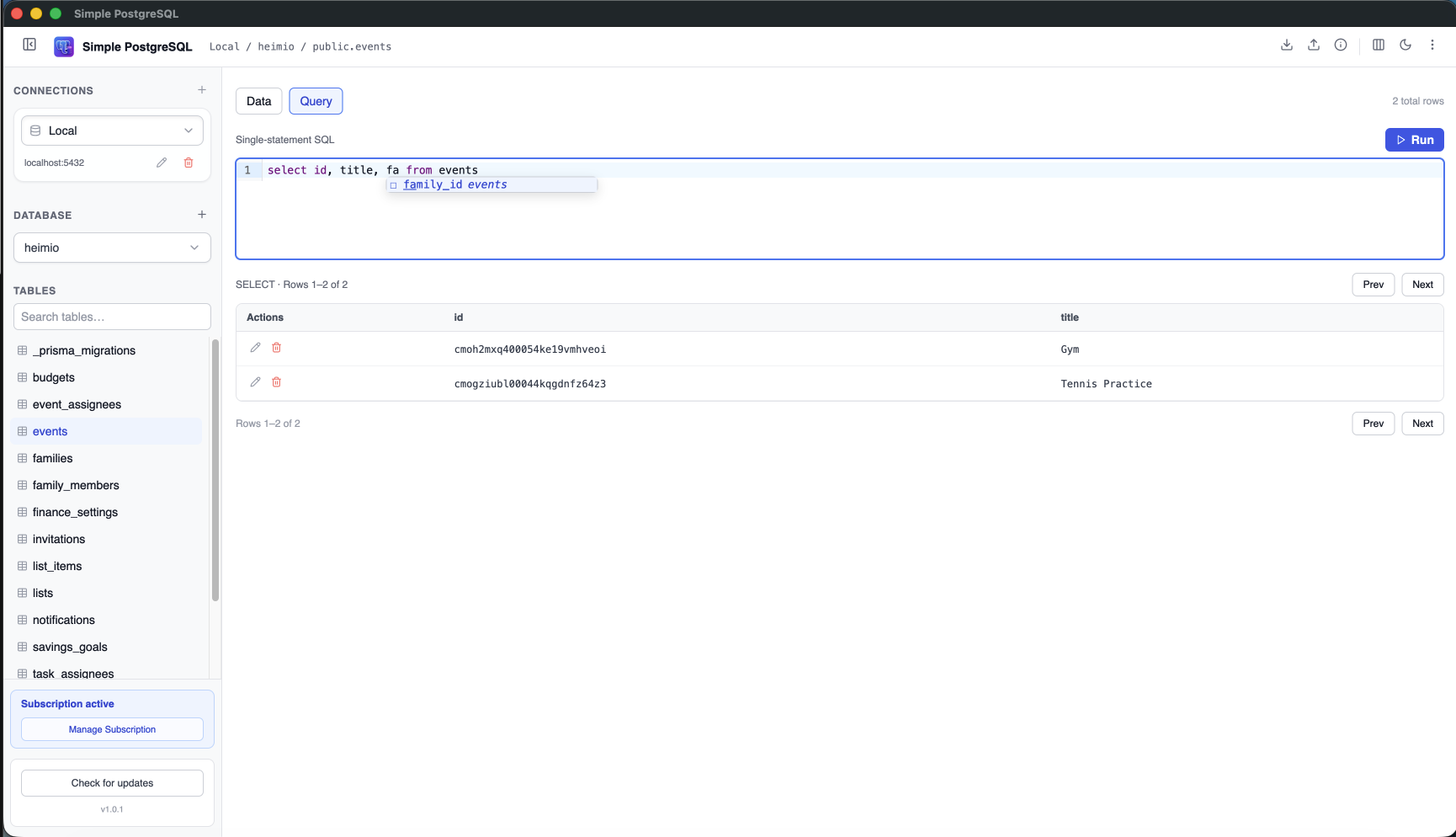
A GUI does not replace SQL. It makes SQL easier to work with. Write queries with table and column autocomplete, execute statements, review results, and iterate without constantly moving between tools.
Manage Multiple Heroku Applications
Many developers maintain development, staging, production, and client applications. Simple PostgreSQL saves multiple connections so you can keep those environments organized and switch between them quickly.
Heroku Postgres GUI vs Command Line
| Task | Command line | Simple PostgreSQL |
|---|---|---|
| Browse tables | Multiple commands | Visual navigation |
| Inspect data | SQL required | Data grid |
| Run queries | Yes | Yes, with results view |
| Manage connections | Manual | Saved connections |
| Explore schemas | SQL or meta commands | Database tree |
| Switch environments | Manual | Connection sidebar |
Both approaches are useful. A GUI reduces friction for visual exploration while keeping SQL close at hand.
Built for everyday database work
Why I Built Simple PostgreSQL
I use Heroku for my own projects. Most of the time I do not need advanced database administration features. I simply want to open a database, view tables, check records, and run queries.
Many existing tools felt larger and more complicated than necessary. Simple PostgreSQL was created to provide a faster, more focused PostgreSQL experience.
Common Use Cases
SaaS applications
Inspect customer data and troubleshoot application issues.
Internal tools
Verify records and understand current application state.
Development environments
Test migrations, queries, and schema changes before deployment.
Staging environments
Validate deployments and data changes before a production release.
Frequently Asked Questions
Can I connect directly to Heroku Postgres?
Yes. Simple PostgreSQL can connect using the database URI from your Heroku Postgres credentials.
Is SSL supported?
Yes. Simple PostgreSQL supports SSL connections, which Heroku Postgres requires for external clients.
Can I connect to staging and production databases?
Yes. You can save multiple database connections and switch between environments.
Is Simple PostgreSQL only for Heroku?
No. Simple PostgreSQL works with standard PostgreSQL databases hosted locally, on Heroku, or through other managed providers. See the PostgreSQL GUI for Mac guide for the broader workflow.
Manage Heroku Postgres without constant context switching.
Browse data, inspect schemas, and run queries from one focused PostgreSQL desktop client.
Download Simple PostgreSQL for Mac 7-day free trial · No credit card required