Supabase Postgres, from your Mac
Supabase GUI for Mac
Connect to your Supabase PostgreSQL database, browse tables, inspect rows, and run SQL from a focused desktop client.
Pay once, use it forever — no subscription
7-day free trial · SSL connections · Credentials stay on your machine
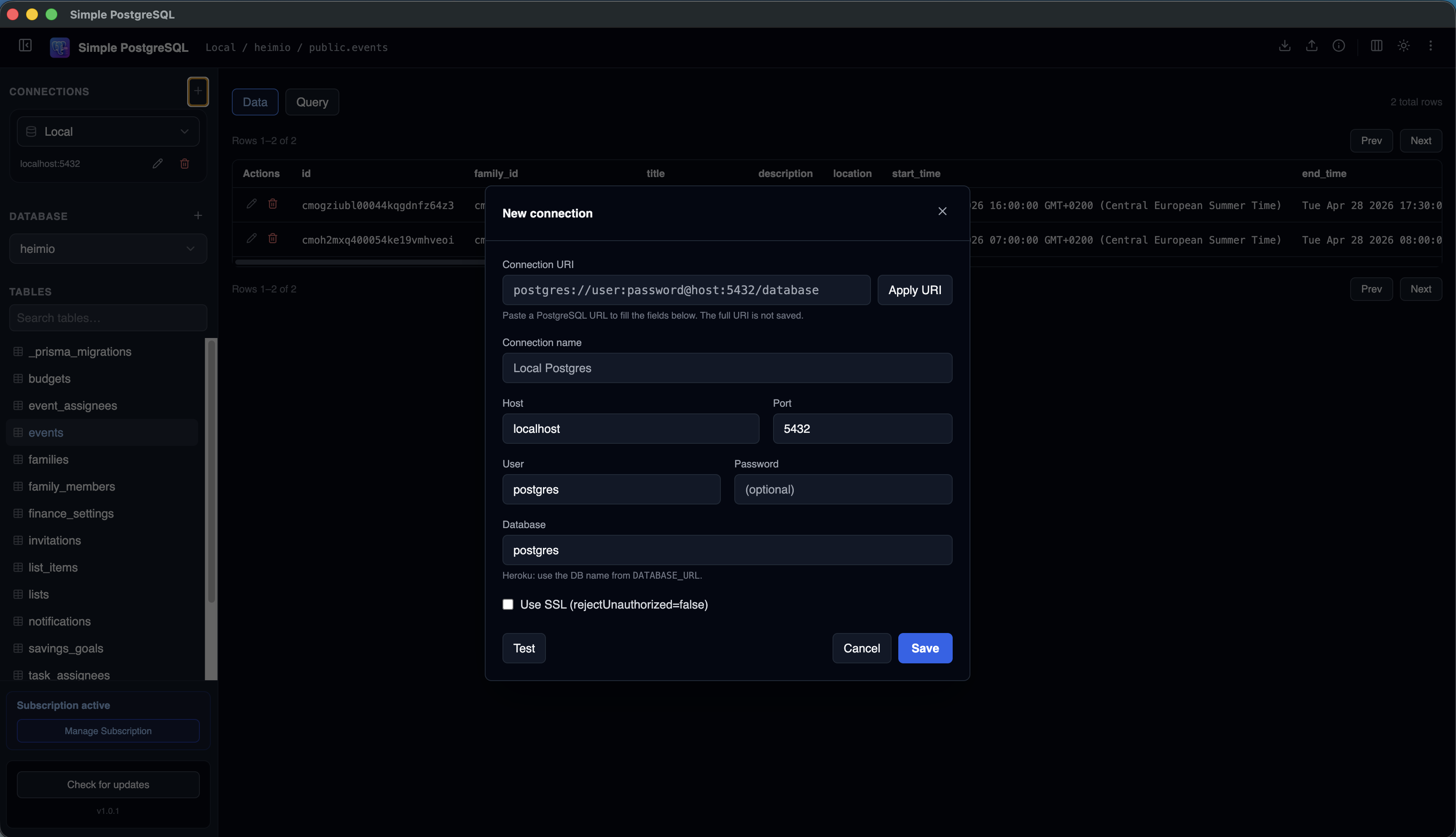
Supabase gives developers a hosted PostgreSQL database with a useful web dashboard. A desktop GUI is helpful when you want your database workflow next to your editor, terminal, and local development tools.
Simple PostgreSQL connects directly to Supabase Postgres so you can browse schemas, inspect rows, run ad hoc SQL, and keep local, staging, and production connections organized on your Mac.
Why Developers Look for a Supabase GUI
The Supabase dashboard is convenient, but day-to-day debugging often works better in a dedicated PostgreSQL client.
How to Connect to Supabase Postgres
Supabase exposes PostgreSQL connection details from the project dashboard. Use the direct connection string or the transaction pooler string depending on your project setup and network requirements.
- 1
Open your Supabase project
Go to Project Settings, then Database, and find the connection information.
- 2
Copy a PostgreSQL connection string
Use the URI format when available, or copy host, port, database, user, and password separately.
- 3
Add a connection
Open Simple PostgreSQL and paste the URI or fill in each connection field manually.
- 4
Enable SSL
Managed Supabase databases normally require SSL for external client connections.
- 5
Test and save
Confirm the connection works, then save it for future table browsing and SQL work.
Browse Supabase Tables Visually
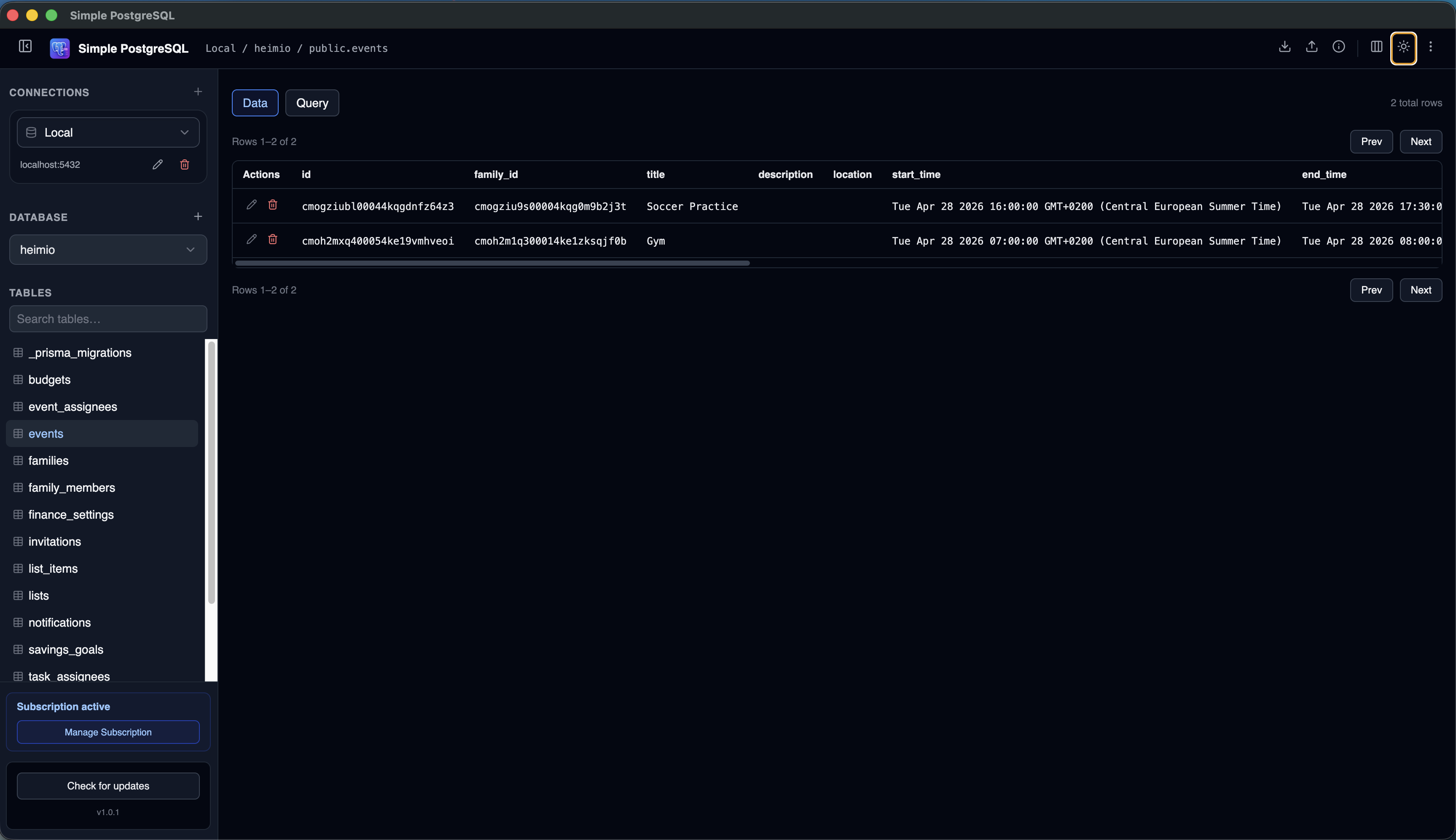
Supabase projects often include auth tables, application tables, storage metadata, and custom schemas. A visual database tree makes it easier to understand what exists before writing SQL.
Run SQL Against Supabase Postgres
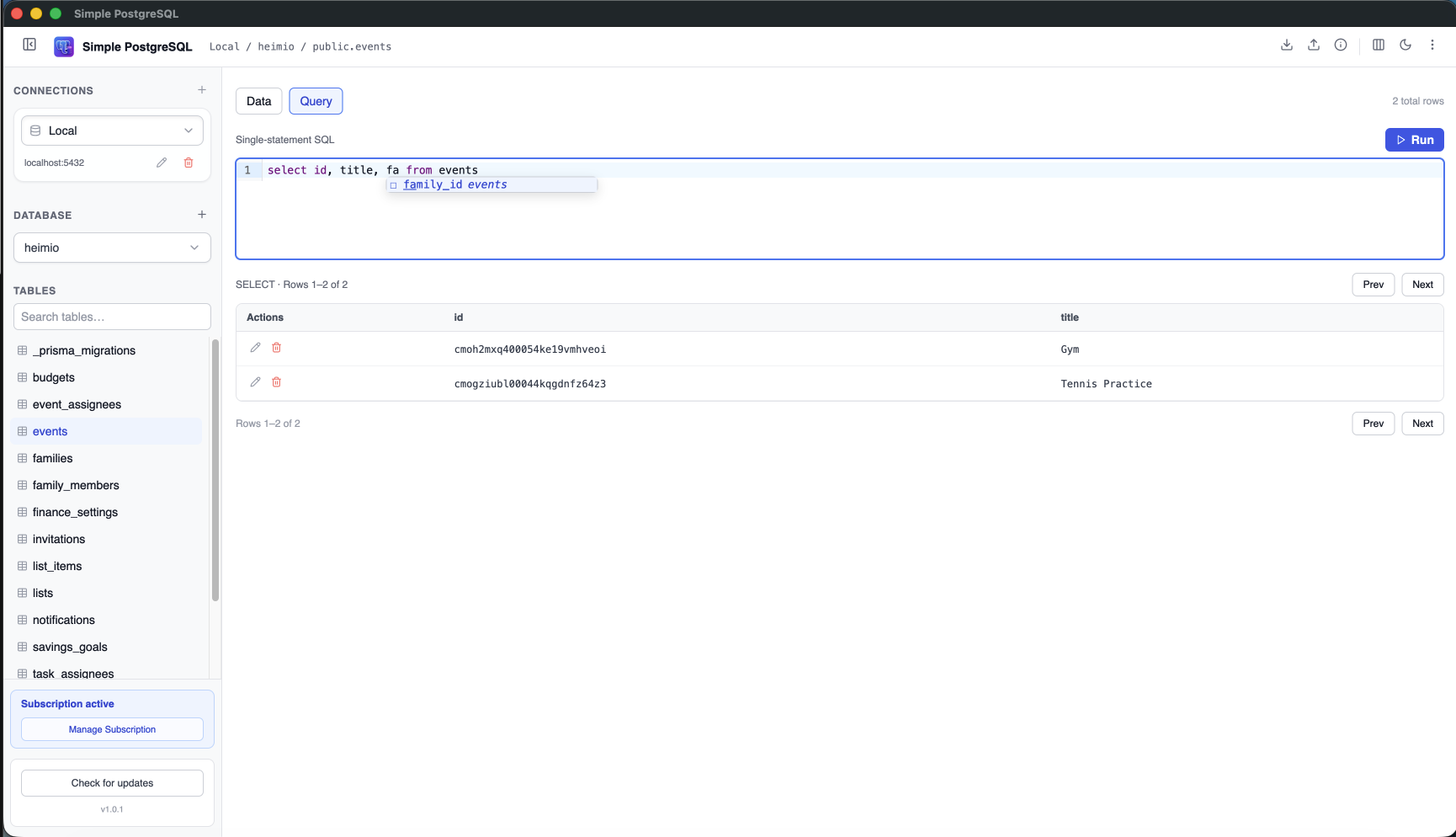
A GUI does not replace SQL. It gives you a comfortable place to write queries, use table and column autocomplete, and inspect results while debugging your app.
Common Supabase Workflows
Debug application data
Check users, subscriptions, content, and feature flags while developing.
Verify migrations
Confirm expected tables and columns after a deployment.
Explore unfamiliar projects
Understand schemas and relationships before changing code.
Compare environments
Move between local, staging, and production Supabase databases quickly.
For a broader setup guide, see how to connect to a remote PostgreSQL database on Mac.
Frequently Asked Questions
Can I connect a desktop client to Supabase?
Yes. Supabase provides PostgreSQL connection details that can be used by standard PostgreSQL clients, including Simple PostgreSQL.
Do Supabase connections require SSL?
Managed PostgreSQL providers commonly require SSL for external connections. Keep SSL enabled when connecting unless your Supabase settings say otherwise.
Can I browse Supabase auth tables?
You can browse tables your database role is allowed to access. Supabase permissions and row-level security still apply.
Is Simple PostgreSQL only for Supabase?
No. It works with local PostgreSQL and other hosted providers such as Heroku, Neon, and standard remote PostgreSQL servers.
Use Supabase Postgres from a focused Mac client.
Browse tables, inspect data, run SQL, and keep your PostgreSQL credentials local to your machine.
Download Simple PostgreSQL for Mac 7-day free trial · No credit card required