Remote PostgreSQL connections
Connect to a Remote PostgreSQL Database on Mac
Use a PostgreSQL connection string, SSL settings, and a desktop client to connect to remote Postgres databases from macOS.
Pay once, use it forever — no subscription
Heroku, Supabase, Neon, local servers, and standard remote PostgreSQL hosts
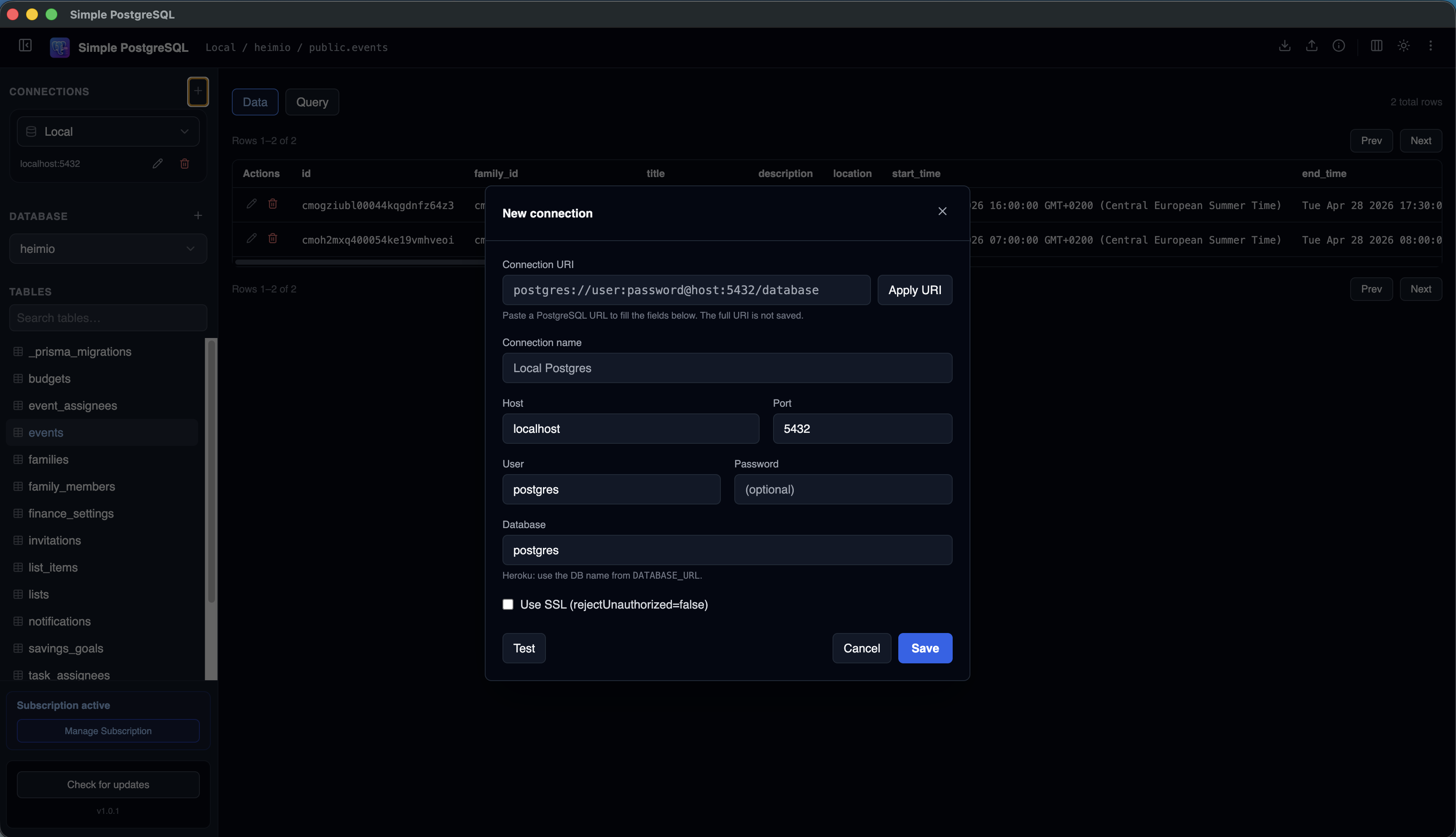
Connecting to remote PostgreSQL from a Mac usually means collecting the right host, port, database, username, password, and SSL setting. Once those details are saved in a desktop client, day-to-day database work becomes much faster.
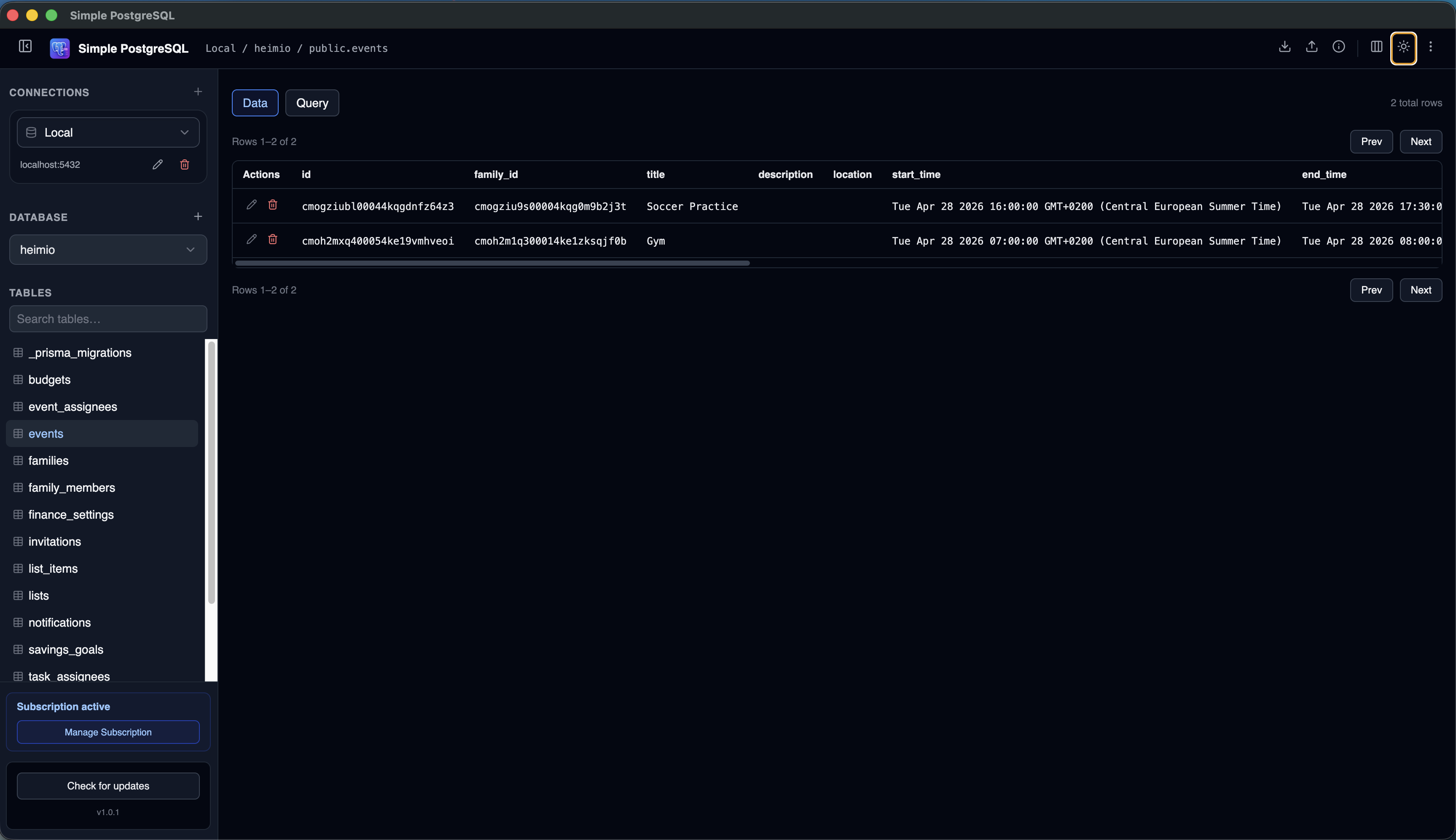
Simple PostgreSQL lets you paste a PostgreSQL URI or enter each field manually, then browse tables, run SQL, and switch between local, staging, and production databases from one sidebar.
What You Need to Connect Remotely
5432, though providers may use another port.PostgreSQL Connection String Format
Many providers give you a URI that looks like this:
postgres://user:password@host:5432/database
Some providers use postgresql:// instead of postgres://. Both are common PostgreSQL URI
formats. A connection string may also include SSL or pooler parameters depending on the provider.
| Part | Example | Meaning |
|---|---|---|
| Protocol | postgres:// | Identifies the URI as a PostgreSQL connection. |
| User | user | The database role used to authenticate. |
| Password | password | The password for the database role. |
| Host | host | The remote server address. |
| Port | 5432 | The network port for PostgreSQL. |
| Database | database | The database to open after connecting. |
How to Connect With a PostgreSQL GUI
- 1
Copy the connection details
Get the URI or host, port, database, user, and password from your database provider.
- 2
Open Simple PostgreSQL
Create a new PostgreSQL connection from the app.
- 3
Paste the URI or fill fields manually
Use whichever format your provider gives you.
- 4
Enable SSL when required
Most hosted databases require SSL connections from external clients.
- 5
Test and save
After the test succeeds, save the connection and start browsing schemas, tables, and rows.
Hosted PostgreSQL Providers
The same basic connection flow applies across most managed PostgreSQL providers. The main differences are where you copy credentials and whether you use a direct connection or a pooler endpoint.
Heroku Postgres
Copy the database URI from Heroku and keep SSL enabled. See the Heroku Postgres GUI guide.
Supabase
Use the direct or pooler PostgreSQL connection details from Project Settings. See the Supabase GUI guide.
Neon
Copy a connection string for the project branch and role you want to inspect. See the Neon Postgres GUI guide.
Other hosts
Use standard PostgreSQL host, port, database, user, password, and SSL settings.
Troubleshooting Remote PostgreSQL Connections
Authentication failed
Check the username, password, database name, and whether credentials were rotated.
Connection timed out
Confirm the host, port, firewall, IP allowlist, VPN, and provider network settings.
SSL error
Enable SSL for hosted providers unless the provider documentation says otherwise.
Wrong database opens
Verify the database name in the URI or manual connection fields.
Frequently Asked Questions
How do I connect to remote PostgreSQL on Mac?
Use a PostgreSQL client such as Simple PostgreSQL, paste your connection string or enter host, port, database, user, and password manually, enable SSL if required, then test and save the connection.
What is the default PostgreSQL port?
The default PostgreSQL port is 5432, but managed providers may use a different port or a pooler endpoint.
Do I need SSL for remote PostgreSQL?
Many hosted PostgreSQL services require SSL for external connections. Keep SSL enabled unless your provider explicitly says it is not needed.
Can I save multiple remote PostgreSQL databases?
Yes. Simple PostgreSQL lets you save multiple local and remote connections and switch between them from the sidebar.
Connect to remote PostgreSQL without rebuilding commands.
Save your PostgreSQL connections, browse tables, and run SQL from one desktop app.
Download Simple PostgreSQL for Mac 7-day free trial · No credit card required