PostgreSQL CSV workflow
Export PostgreSQL to CSV on Mac
Export the visible page of PostgreSQL table data to CSV from a Mac desktop client without memorizing COPY commands.
Pay once, use it forever — no subscription
7-day free trial · CSV import and export · Local and remote databases
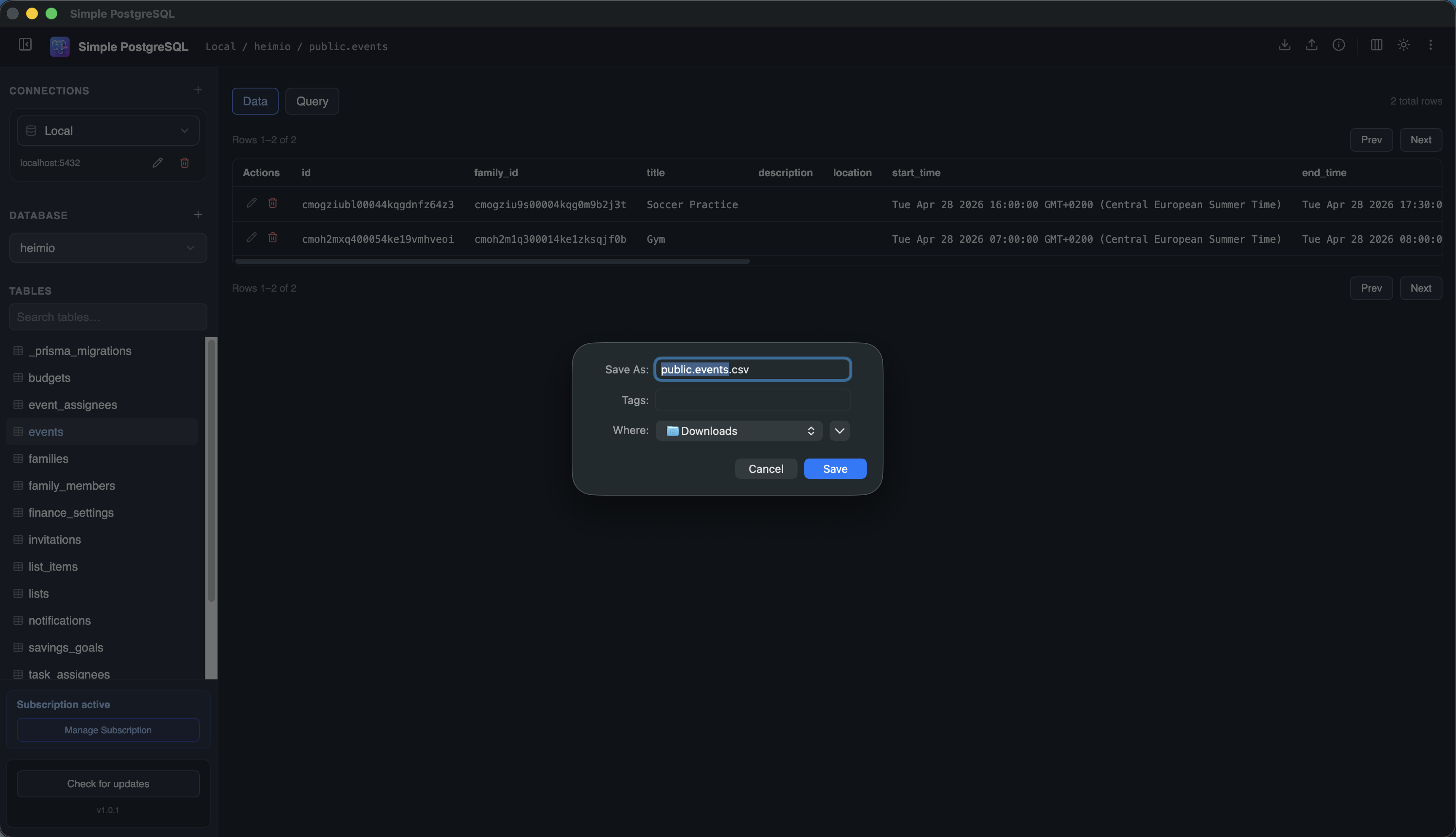
PostgreSQL can export data to CSV using SQL and command-line tools. That is powerful, but it is often more than you need when you simply want to share a table page, inspect data in a spreadsheet, or send a quick export to a teammate.
Simple PostgreSQL gives you a visual path: connect to the database, open a table, review the current page, and export those visible rows to CSV.
Ways to Export PostgreSQL Data to CSV
Desktop GUI
Best when you want to browse the data first and export from a visual table view.
psql
Best for developers comfortable with terminal commands and repeatable scripts.
Server-side COPY
Best for database administrators exporting files from the database server environment.
How to Export PostgreSQL to CSV With a GUI
- 1
Add your PostgreSQL connection
Connect to a local database or a remote database from Heroku, Supabase, Neon, or another PostgreSQL host.
- 2
Open the table
Use the database tree to select the schema and table you want to inspect.
- 3
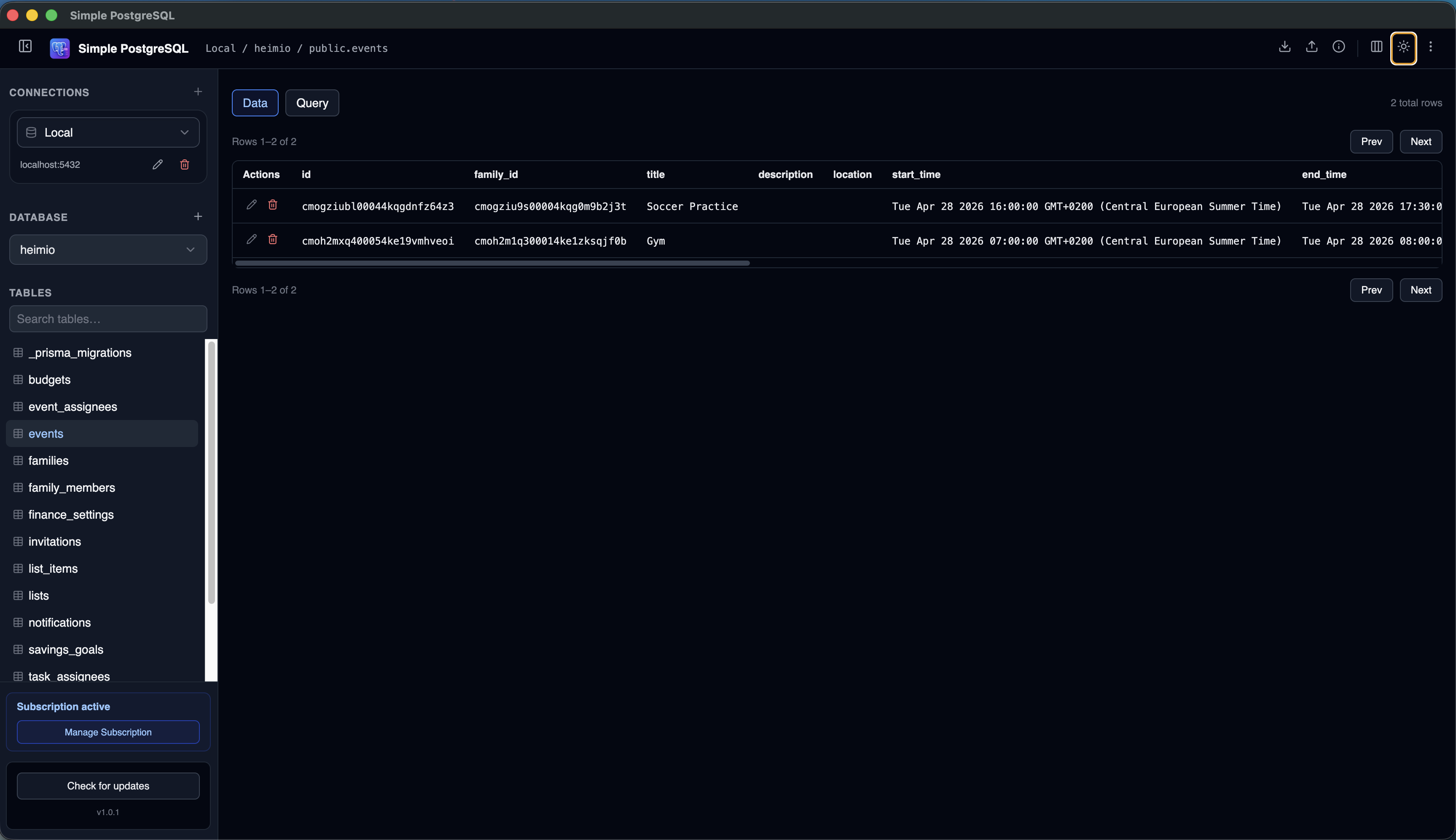
Review the visible data
Check the rows and columns before exporting so you know what will be included.
- 4
Choose export CSV
Use the CSV export action to save the currently visible page of rows.
- 5
Open the CSV
Use the file in Numbers, Excel, Google Sheets, or another tool that accepts CSV data.
Export PostgreSQL to CSV From the Command Line
If you prefer terminal workflows, psql can export query results with \copy. For example:
\copy (select * from users) to 'users.csv' with csv headerThis is a good option for repeatable exports. A GUI is more convenient when you want to inspect the table first, adjust what you are looking at, and export as part of an exploratory workflow.
Common PostgreSQL CSV Export Use Cases
Share a data sample
Send a small export to a teammate, client, or support thread.
Analyze in a spreadsheet
Move selected PostgreSQL data into Excel, Numbers, or Google Sheets.
Debug production issues
Inspect records visually before exporting relevant data.
Move data between tools
Export from one workflow and import into another system that accepts CSV.
CSV Export Tips
Check the current page
The app exports the visible table page, so confirm the rows and columns before saving.
Use SQL for larger exports
For full tables or repeatable filtered exports, use psql and \copy.
Include headers
Column names make CSV files easier to understand in spreadsheet tools.
Be careful with production data
Only export data you are allowed to store or share outside the database.
Frequently Asked Questions
How do I export PostgreSQL rows to CSV on Mac?
Simple PostgreSQL can export the visible table page. For a full table or custom query, use psql with a \copy command.
Can I export CSV from a remote PostgreSQL database?
Yes. Connect to the remote database, open a table, and export its currently visible page.
Can I import CSV into PostgreSQL too?
Yes. Simple PostgreSQL includes CSV import and export workflows for PostgreSQL tables.
Is a GUI better than psql for CSV export?
Neither is universally better. A GUI is convenient for exploratory exports, while psql is useful for scripts and repeatable command-line workflows.
Export a visible PostgreSQL table page from your Mac client.
Browse tables, inspect rows, and save the current page as CSV from one focused desktop app.
Download Simple PostgreSQL for Mac 7-day free trial · No credit card required